


Whether you’re 3D scanning for reverse engineering, design, 3D modeling, or any other application, choosing the correct 3D scanning mode for the job is essential. In this article, we’re going to look at MetroX, MetroX Pro, MetroY and MetroY Pro’s scanning modes and explain what you should use them for.
Scanning Mode Overview
|
Scanning Mode |
Supported 3D Scanner |
|
Cross-lines |
MetroX, MetroX Pro, MetroY, MetroY Pro |
|
Parallel Lines |
MetroX, MetroX Pro, MetroY, MetroY Pro |
|
Single Line |
MetroY, MetroY Pro |
|
Full-field Structured Light |
MetroX, MetroX Pro, MetroY Pro |
|
Auto Turntable |
MetroX, MetroX Pro, MetroY Pro |
Multi-Line Laser Modes
Keep in mind that markers must be placed when using any laser-scanning mode. Also, you can freely switch between these modes to optimally tackle different surfaces.
Cross Lines Mode
Depending on your scanner model, this mode ranges from 14 to 34 intersecting blue laser lines. It’s designed to rapidly scan low-feature surfaces (e.g., smooth plastic housings, polished or machined metal parts, rubber or silicone parts, spheres, cylinders, flat plates, ceramic or glazed objects) after placing markers for tracking. Like the other blue laser scanning modes, it can handle both dark and shiny surfaces without first treating them with scanning spray.

|
Strengths |
Limitations |
Recommended Use |
|
Fast capture of large areas. |
May miss fine details or introduce more noise in complex areas. |
Technical parts, automotive components, or flat featureless surfaces. |
Parallel Line Mode
Again, depending on your scanner model, this scanning mode offers 7 to 15 parallel blue laser lines and is ideal for capturing complex geometries and fine details during a scan. This is because using fewer laser lines concentrates more pixels per line, reduces overlap between lines, lowers noise and ambiguity, and improves localization on complex geometry. Like other blue laser modes, it can scan dark and shiny surfaces without scanning spray.

|
Strengths |
Limitations |
Recommended Use |
|
Excellent edge definition and surface fidelity |
Slower than cross lines mode |
Precision parts, intricate details, edges. |
Single Line
As the name implies, this mode projects a single powerful blue laser line. It’s designed for scanning deep holes, crevices, and extremely fine details. Because there is only one laser line, this mode produces the least noise, keeping details as sharp as possible.

|
Strengths |
Limitations |
Recommended Use |
|
Excels at capturing hole interiors and extremely detailed areas |
Only suitable for capturing small areas due to slow scanning speed. |
Holes, crevices, highly detailed small areas. |
Full-Field Structured Light Mode
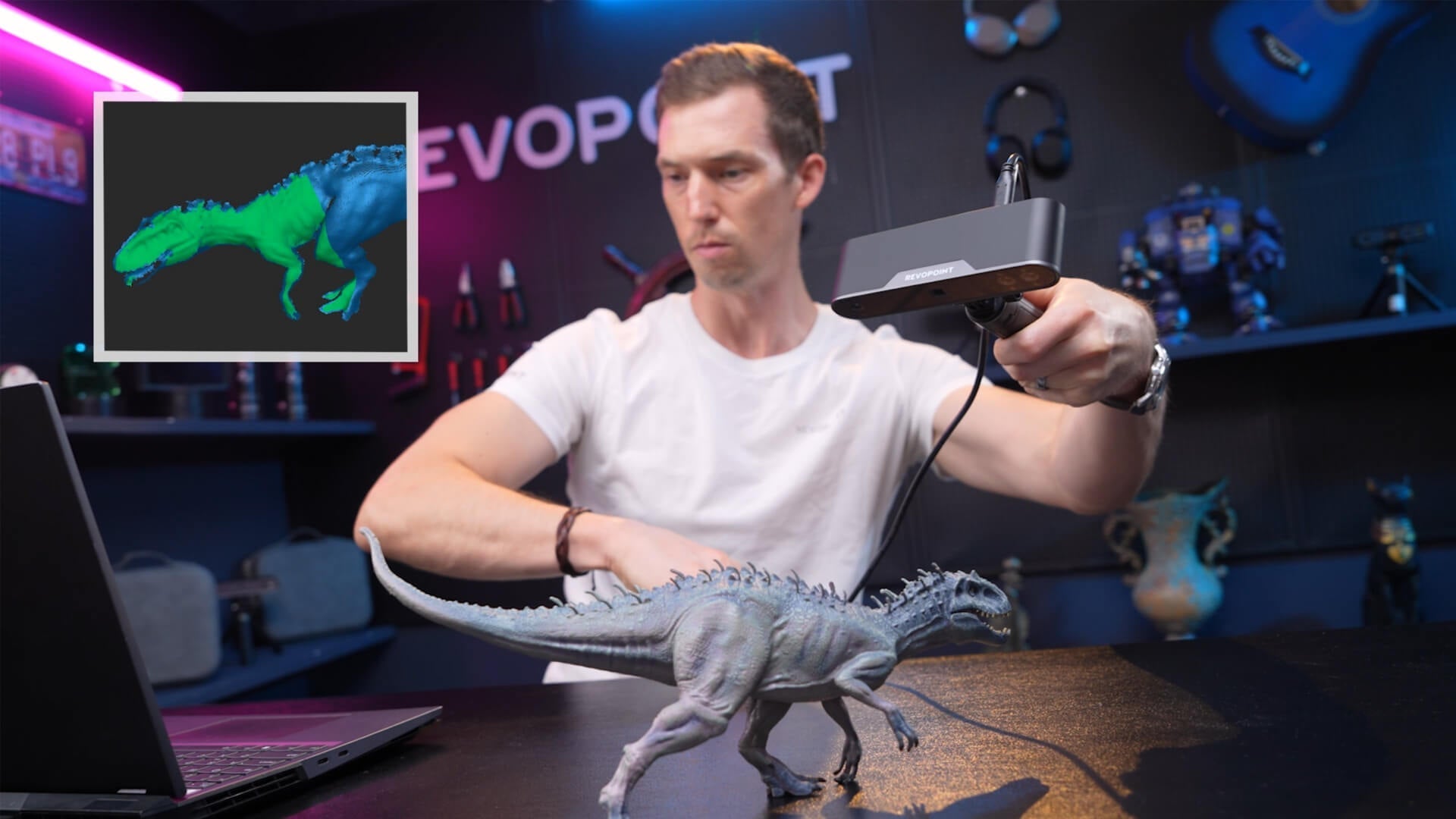
The fastest scanning mode, at up to 7 million points per second, is ideal for rapidly capturing feature-rich objects like statues, figurines, electric tools, etc, without first placing markers. Unlike laser modes, full-field may require scanning spray when capturing dark or shiny surfaces. You can, of course, also capture featureless surfaces, but you must first place markers.

It’s worth mentioning that if you’re scanning a featureless object that doesn’t require scanning spray to make it visible to the scanner, then full-field is still a great choice, especially when dealing with round objects.
|
Strengths |
Limitations |
Recommended Use |
|
Detailed and fast capture of feature-rich objects. |
Dark, shiny, or transparent areas will need to be treated with scanning spray. |
General-purpose 3D digitization, complex shapes, or quick scans. |
Auto Turntable Mode
In this mode, an object placed on the Dual-axis Turntable can be automatically captured. The turntable rotates to set or preset intervals, while the scanner captures single frames in full-field mode at each interval. The turntable can also be set to tilt to expose uncaptured areas during subsequent rotations. The lower number of overall frames captured during the process helps to minimize noise.

This mode works for both feature-rich and featureless objects, but when scanning featureless objects, ensure there’s sufficient maker coverage.
|
Strengths |
Limitations |
Recommended Use |
|
Fully automated scans, consistent angular coverage, and optional color capture. |
Limited to smaller objects, and objects must be repositioned to capture their undersides. |
Figurines, small prototypes, objects for 3D printing. |
Scanning Mode Comparison
|
Mode |
Detail Level |
Speed |
Best for |
Markers Required |
|
Cross Lines |
Medium |
Fast |
Larger flat surfaces |
Yes |
|
Parallel Lines |
High |
Medium |
Fine details |
Yes |
|
Single Line |
Very high |
Slow |
Holes |
Yes |
|
Full-field Structured Light |
High |
Very Fast |
General detailed scans of feature-rich objects |
Depends on the object |
|
Auto Turntable |
High |
Slow |
Complete 360 models |
Depends on the object |
Understanding your Revopoint laser 3D scanner’s scanning modes is an essential first step to maximizing your 3D scanning workflow. For a more in-depth look, check out Revopoint’s YouTube channel for tutorials.


Leave a comment
This site is protected by hCaptcha and the hCaptcha Privacy Policy and Terms of Service apply.